How can I pay someone to write my discussion posts for me?
How can I hire someone to complete my weekly discussion forums?
Can I pay someone to write my initial discussion posts and replies?
This blog post is for you.
How to Pay Someone to Write Discussion Boards and Forum Posts
Are you tired of wasting time every week writing discussion posts and replies for online classes? You can hire someone to do that for you.
Step 1:
Decide on the type of tutor you would like to hire.
Option 1
A tutor can log in to your online class every week and post all initial posts and discussion replies for you prior to each deadline throughout the week. This allows you to be completely hands-off. It also ensures that if your school requires that you login and post replies on multiple days of the week, your tutor has it covered for you. No more having to remember to login on Thursday, Saturday, and Sunday, or whatever weekly deadlines your school has established.
Option 2
A tutor can write all of your initial posts and replies; however, they do so via email instead of logging in to your class. First, you send the tutor the discussion prompt for each week. This can be done at the start of the semester or at the start of every week.
Next, the tutor writes your initial post and sends it back to you in a Word file. You then login to your class and paste the pre-written discussion post into your discussion forum and submit.
After this, you then send the tutor a screenshot or a pasted-text copy of a few other initial posts from the class, and the tutor writes the required number of replies and returns the file to you.
You then login and post the replies to the other students in your class.
This option allows you to review all work before it is submitted and does not require that your tutor ever have any login information for your class.
Send us the discussion prompt for the week and a copy of the discussion requirements for your class (word count, number of posts, weekly deadlines (ex: initial posts are due on Thursdays and replies are due on any other two different days of the week), etc.). We then review this information and provide you with two prices- one price for the completion of all discussions in a class for the full semester and one price for a single discussion for one specific week of the semester.
Step 4:
You decide if you would like to work with Executive Academics for the completion of your discussion posts and what type of tutor you would like to hire (someone that logs in to your class or someone that emails you the weekly posts). If you decide to move forward, we then assign you a tutor and begin work in your class.
Congratulations!
You have just hired someone to write your discussion posts for you. You have also saved yourself an enormous amount of time this semester!
How can I hire someone to write my essay and know I will receive quality, original work?
How can I pay someone to do my homework and be assured that the work will actually be done correctly and on time?
This blog post is for you.
How to Pay Someone to Take Your Class for You
Once you have decided that you would like to hire someone to complete your online class, the process of selecting a “tutor” (the person who will do all of your coursework for you) may seem overwhelming. With a few simple steps, you can fully outsource nearly all of your college work to a professional academic tutor.
Send us a copy of your course syllabus (feel free to remove the school name from the file if you wish to do so) or provide us with the name of your school and the class you will be taking. Our tutors have completed classes at over 90 schools in the United States (and a few in other countries), so we are familiar with the requirements of most classes that you may be taking, and we may not need to see the syllabus if it has not yet been published.
Step 3:
We will review your class and confirm that there are no proctored exams (tutors cannot complete proctored exams for you) and determine if there are any assignments that a tutor may need your assistance with. For example, if your assignment requires your voice on a PowerPoint presentation, the tutor will develop the entire PowerPoint presentation for you, but you would then need to add the voice elements by yourself. This usually requires about 20 minutes of your time.
After we have addressed any potential questions or concerns, we will determine tutor availability and provide you with pricing information.
Step 4:
If you choose to work with Executive Academics, you will be assigned a tutor who will complete your class for you. Most clients prefer that their tutor logs in to their online account and submits assignments as they are due, which ensures that you only need to login whenever you wish to check your grades or review work submitted. All tutors use a VPN, so if your school logs the IP used for a login, it will show up as a standard IP from a VPN server in the United States that any student could be expected to be using on their personal computer.
For clients who may be concerned about allowing a person they have never met to complete their online classes for them without being able to review the work first, tutors are able to send the assignments directly to you without ever logging into your class. This works for discussions, homework, and papers, although tutors must be logged into a class to complete your online exams (non-proctored) for you. After you have reviewed the assignment, you are then able to submit it to your class yourself. You will always receive your assignment with enough time to review and submit before the deadline.
Once a tutor has been assigned to your class, they will complete the class in the same way that you would do so if you were taking the class yourself. For example, if your discussions are due on Thursdays and require reply posts on two other days of the week, the tutor would login prior to or on a Thursday of the given week and post your initial response for you. They would then login on two other days (perhaps Friday and Saturday) and post the required replies. Alternatively, a tutor can write both the initial post and reply posts, without logging into the class, if the client provides them with the discussion prompt and two other initial posts from other students to which the tutor can write responses. The same process is followed for the completion of quizzes and exams and for the submission of homework, papers, and other assignments.
Step 5:
After your tutor has begun work in your class, you do not have to do anything else moving forward. Most of our clients contact us once at the start of a semester to secure a tutor and then we do not hear from them again until the start of the next semester.
When working with a tutor, you are free to login and check the progress in your class whenever you wish to do so. If the tutor requires your assistance with anything, you will be contacted immediately, but otherwise, the tutor will login and submit all of the work in your class prior to the deadlines. Although professors rarely send individualized emails or messages, in the event that this does occur, the tutor will never reply to the professor without first contacting you.
Step 6:
Your tutor finalizes completion of your class, you register for your next semester, and the process starts again. Most clients prefer to remain with the same tutor throughout their time with Executive Academics, and every effort is made to ensure that current clients are given priority access to the tutor of their choice for future semesters.
Congratulations!
You have completed the process of outsourcing your college degree!
Note: The writers at Executive Academics are able to complete nearly all aspects of your online classes for you. We post your weekly discussions (initial response and replies), write your papers, take your non-proctored quizzes and exams, and do your homework, but we are not able to complete proctored exams (those that require the use of an ID) for our clients. All of the services we currently provide are completely legal, but unfortunately, taking proctored exams enters a bit of a gray area that we prefer to avoid.
Overview: How to Beat Proctored Testing
Many of our clients have asked us how to beat sites that host online proctoring. While many schools require no online-proctored exams, some others require a few online-proctored exams each semester. Out of curiosity, we signed up for a few classes that required multiple proctored exams in an attempt to determine the best way to game the system for different online proctoring companies. With a bit of creativity, we designed a way to cheat online proctoring sites using a specific hardware set-up and a “helper” person. We also added directions for a more advanced set-up so that you can take the exam with a remote test taker who is not in the room with you.
As a preface, this blog is LONG. You can probably jump straight to the diagrams and skip all of the reading, however getting caught cheating is never fun so we went into as much detail as we could in the set-up and execution instructions so that you are as fully prepared as possible.
The Problem
First, when taking an online-proctored exam you are required to have a computer, a monitor, and a webcam, as well as a CD or a mirror of some sort to show the proctor that you do not have any notes taped to the side of your monitor. Additionally, the proctor then uses their remote access, takes over control of your mouse, and checks the settings on your computer to ensure that you only have one monitor display and to disable your screenshot capability.
Lastly, the proctor then has you spin your webcam around the room so they can see where you are taking the test. If you can have your webcam securely attached to your monitor or even better as built into your monitor, this limits the range of visibility that they can see. You should be prepared to show the whole room, but they won’t be able to see the floor, under your desk, or behind any furniture, and having the excuse that the webcam is part of your monitor helps make that even harder. Look honest while you’re saying it, not like a twitchy liar scamming their system.
Basically you are stuck in front of your monitor with a webcam that shows all of your eye and body movements with no way to really project the image of the exam to anyone else, short of having a two-way mirror behind you, which seems excessive.
Solution: Hardware and Software Requirements
This is how you get around the problem.
You will need the following hardware components for the basic set-up:
One desktop computer or a laptop computer with a VGA port, or an HDMI to VGA adapter
Two monitors
Either a separate webcam or a webcam built into one monitor
Keyboard & Mouse (figured we’d include this although you probably know this)
In addition to those listed above, you will need the following hardware/software components for advanced set-up with a remote test taker:
Two Smartphones
Picture/Video Sending App
Mac or PC for remote test taker- not required, but makes things easier
You will need the following extra things:
Notecards (any size works- we used 3×5)
Pens
A “helper” person- can be either the person taking the test for you or the middle person conveying the questions to a person remotely who then feeds you the answers
You might need:
A tutor- someone who takes the test for you remotely
Solution: Basic Set-Up
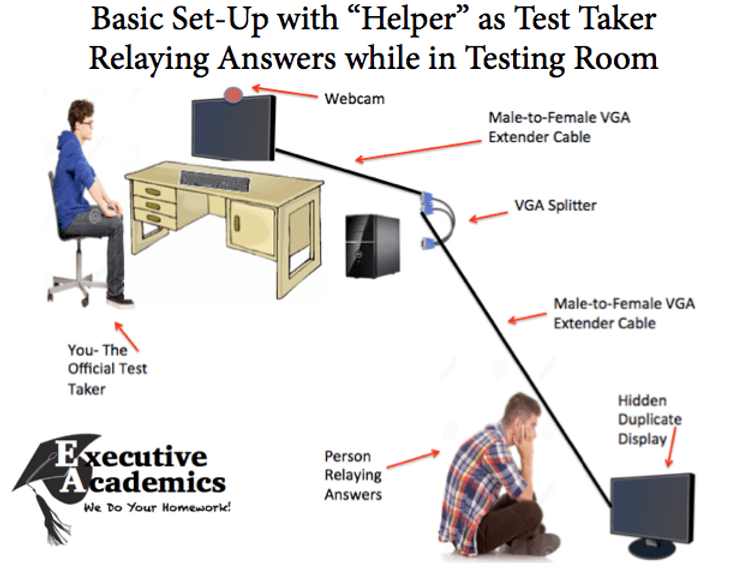
First you need to determine if the person who is going to take your test for you will be in the room with you. If so, that eliminates the need for a middleman “helper” and a remote test taker, if not, it adds a few steps. If the person who is going to do the test can be with you, the set-up is pictured below.
The person is able to see the exact same image that you see on your monitor, but because the image is split via hardware, there is no indication in your computer settings that two monitors are connected to the one computer. (Confirm this on a Mac by going to System Preferences > Displays, Confirm this on a PC by going to Start > Control Panel > Appearance and Personalization > Personalization > Display Settings > Monitor- this process may vary depending upon Windows version). If you have properly set-up this design, there will only be one monitor that appears to be in use by the computer.
If you are using a laptop, make sure you have it closed and set to turn-off the laptop display so that only the monitor you are using shows a display and not both the monitor and the screen of the laptop. Also, make sure the laptop is fully out of the visual field of the webcam- explaining why you have a splitter connected would be difficult. If this is not possible, you can always add a third VGA male-to-female connector cable connecting your laptop to the splitter, which virtually eliminates the chance that the splitter can be seen if your laptop must be within range of the webcam. You have the two extender cables running to each monitor from the splitter so that you are able to stash the laptop well out of site and so that the extender cable connected to the monitor that your “helper” will be using can be as far away as an adjoining room or simply under your desk.
For simple multiple-choice tests, your “helper” can do one of several things. Since you cannot look away from the computer or in any way acknowledge that there is anyone else in the room, the communication needs to be done through touch under your desk or by sliding the written answer under the base of the monitor on your desk.
In the first option, the “helper” sits under your desk with their duplicated monitor and as you take the test, he or she simply taps a pre-arranged place on your leg with the answer. For example, when we did this, the right knee was “A”, left knee was “B”, right ankle was “C”, and left ankle was “D”. This is the easiest way to do a multiple-choice test. There is also another option using color coded flash cards from another room further described at the end of the blog under “Key Things to Remember”.
If you are stuck taking a math test or a coding test, your “helper” writes the answer on a 3×5 notecard and slides it slightly under your monitor. This allows you to have your head down while you are either writing on scratch paper or using your calculator and places the answer within your field of sight without being in the range of the webcam. Because your eyes and head are already down, the webcam does not pick up the slight movement of your eyes to look at the notecard. You then write the answer onto your scrap paper, the “helper” removes the notecard, and you act as if you now have the answer and enter it into the test from your scrap paper. You then move on to the text question and while your “helper” is doing the problem, you pretend to be writing on your scrap paper, conveniently scratching out at some point the answer to the last question. This ensures that in the event anyone actually looks at your scrap paper they don’t see that you randomly wrote the right answer down when nothing else on your scrap paper was correct. During our trials, no one ever asked to see the scrap paper and none of the proctors are specifically trained in the subject- they are purely trained to watch for eye and body movement that indicates cheating.
Solution: Advanced Set-Up
Now, if you are not lucky enough to have the person actually doing the test for you in the room, the below set-up is how to have a middle-“helper”-person and a remote test taker.
In this situation you have the exact same set-up as previously, however your “helper” conveys the test question electronically to a person anywhere else in the world, who then replies with the answer. The “helper” then communicates the answer to you, the test taker, via whatever method you prefer- either the leg tapping trick or the note card technique.
We found that the best way for this to work is if the remote test taker has a Mac and both are working with an iPhone. This allows your “helper” to take a picture of the screen with your test question (for complex questions such as for math classes) or to simply hold the Facetime iPhone to the computer for the remote test taker to see the question. The remote test-taker then quickly types the answer back on their Mac, and sends it via iMessage, or holds up a flashcard with the multiple choice letter into the view of Facetime. If the helper and remote test taker are texting answers, the “helper” switches off of the Facetime app, looks at the text message, writes the answer onto a note card and then conveys it to you, the person taking the exam. If a simple multiple choice test is being taken, all you really need is Facetime, since both the “helper” and the remote test taker can convey visually the question and then the correct letter answer, which can then be conveyed to the you taking the test through whatever method was chosen.
A “helper” with a smartphone that can send picture messages and a remote test taker with a smartphone that can receive and send picture messages is really all you need, however Facetime makes it a little faster. Also, Facebook messaging can be used in place of iMessaging if the remote test taker is using a PC instead of a Mac (since a PC doesn’t have the iMessage app on the computer) as opposed to doing everything through their phone. For complicated answers, tying an answer is also easier on a computer than it is via text message.
Bottom line, this set-up allows you to communicate with a remote test taker however you decide to and then convey the questions back to the person taking the test. For multiple-choice tests, the process is fast enough that the person taking the test in front of the webcam can simply look confused for 15-20 seconds until they feel the answer being tapped onto their leg. For math tests, the person simply writes on a scrap paper random things which the proctor cannot see and pushes buttons on their calculator until their “helper” has written the answer on a notecard and can slide it under the monitor for them to copy.
Key Things to Remember
If you have the second monitor set-up in an adjoining room (which is a good idea for when the proctor has you spin the webcam to show your room), make sure you practice the path the “helper” will take when they move into the room to give you the answer. During one of our attempts our “helper” stepped on a squeaky board, so practice the path their feet will take!
The proctor cannot see under your desk, but it will likely make you less nervous if you have your “helper” move into the room with the monitor after you have already started taking the test and the Proctor has no more need to look at the room. Be sure your VGA connections are secure during the movement.If one falls out, getting it back in makes your computer blink for a second. It is unlikely the proctor will notice, but if they are paying attention this is a red flag.
If you are taking a multiple choice test with the person in the other room, you can skip the leg tapping trick and instead have them hold up a large, bright colored piece of paper (red for A, blue for B, etc). You can catch the color movement out of the corner of your eye without having to shift your eyes in a way that indicates cheating and this keeps the person fully out of the room you are in during the entire testing process. This also serves to minimize your nervousness level since you are pretty much alone in the room the entire time you are taking the test and you don’t have to worry about a person under your desk making accidental noise.
MUTE FACETIME!!! We dropped Facetime in the middle of a test and forgot that when reconnecting it makes that annoying ringing sound. Fortunately the person serving as our “helper” was in the other room and sprinted to the other side of the house with the phone. Keep your phone on total silent and make sure absolutely all of the sounds (texts, email alerts, everything) are off. You promise the proctor your phone is off and in the other room and then it starts ringing- kind of awkward.
If you are using a Macbook, you will need a VGA adapter- the HDMI adapter on Amazon worked fine.
If you are using a Macbook, sign in and take the test under a guest account if the phone your “helper” is using for the test is yours. Otherwise, every time a text message is sent the mobile phone app pops up on the bottom of your computer. Fortunately we realized this happened before we were taking the test, but it seems like it would have been hard to explain if it had happened during the exam.
Practice that poker face. You CANNOT give any indication that anyone else is in the room or you are busted.Proctors tend to switch throughout your exam and of those we had for multiple tests only one of them seemed overly invested in his job, however if you get a proctor that really is paying attention, they will notice eye movement- this is specifically what they are trained to look for.
Practice with your helper and your remote test taker. Have a friend sit on Facetime or some web app where they can see your movements with the webcam you are using- they can help make sure you know where the blind spots are under your monitor and how far you need to keep your head down writing on scratch paper so your eyes don’t show a shift forward to look at the notecard. They can also tell you if you are doing anything else wrong. The first time we did this we practiced for an hour first and were still completely freaked out when we finally started taking the test because no one was comfortable with what they were doing. By the last exam, we were a well-oiled machine, everyone knew exactly what they were doing, and the process went perfectly.Practice is important.
Make sure your “helper” removes the notecard from under the monitor between answers. While it didn’t happen to us at all, that proctor can always ask you to grab your reflective device and show him or her the area around your computer again- best to not have to explain the stack of notecards with answers under the monitor.
After you enter your answer choice into the test, give your “helper” a second to see it on their screen…if somehow you misread an answer card or they tapped the wrong part of your leg or held up the wrong color paper, this gives them the chance to flag the play. Have a signal set so that they can tell you to wait before you submit the answer so that they can give you the correct one. This cost us a 100% on one the tests we took and made everyone mad that our test taking dummy didn’t wait on the cue to move forward.
Remember your entire proctor session is recorded so even if your proctor does not immediately pick up on an issue, they can always go back and review the file later if there is a suspicion of cheating. Don’t give them a reason to need to do this by forgetting that you are constantly being recorded. Don’t talk to or acknowledge your “helpers” from the point that you first connect to the proctor until you are fully logged out. We unplugged our webcam as soon as we logged out, largely out of paranoia, but be paranoid!It will lower your chance of being caught if you are constantly aware of the camera.
So in just under 3,000 words, this is one way to get around the technical challenges of taking online proctored exams when you should have spent more time studying.
Questions? Shoot us an email at clientservices@executiveacademics.com and we’ll be happy to help you out.
We do your homework, take your online classes, write your papers, take your (non-proctored) exams, and teach you how to beat, cheat, and defeat online proctoring.